
How to Add Audio
Single Audio Player
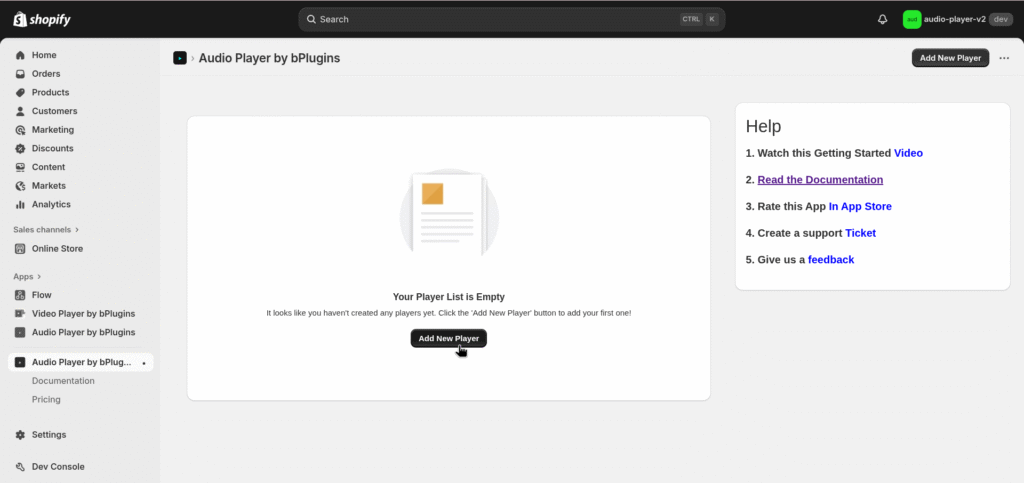
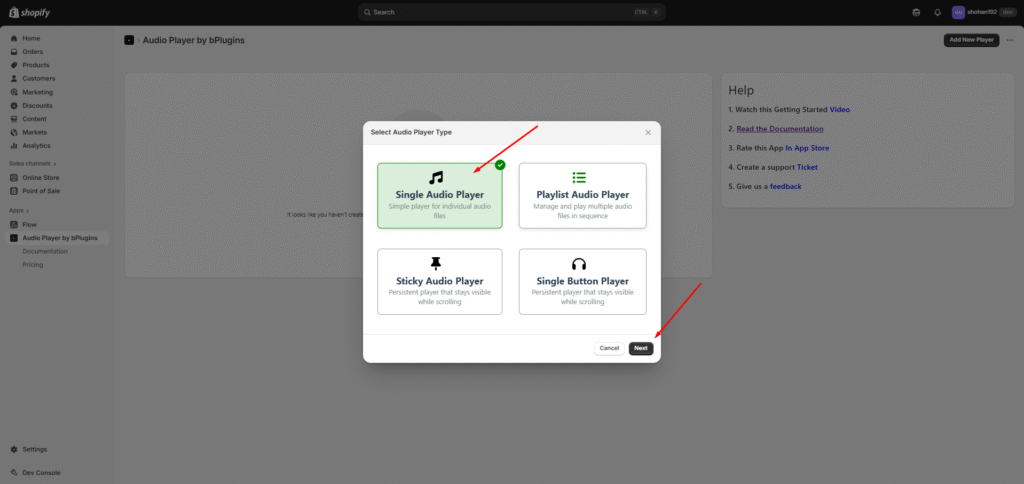
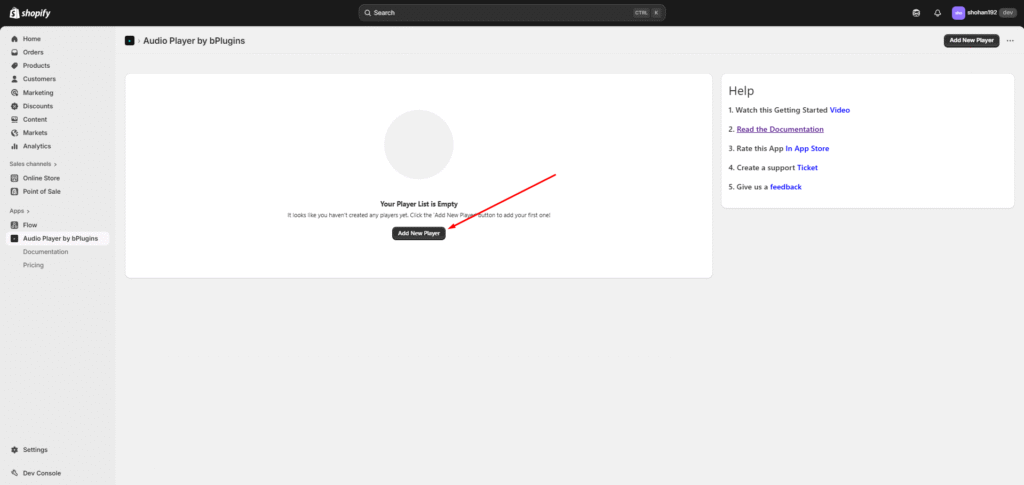
Click on “Add New Player” for Upload Audio and Select the Player type and Click On “Next”
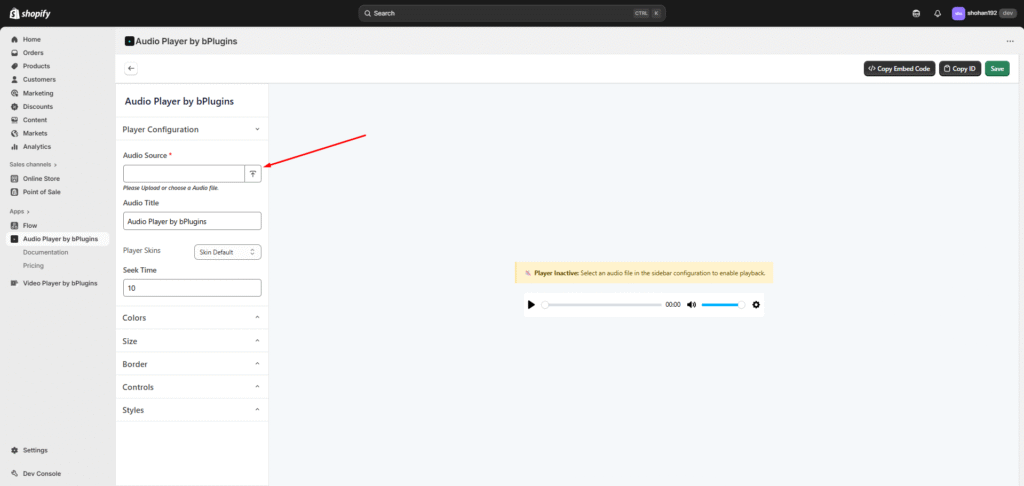
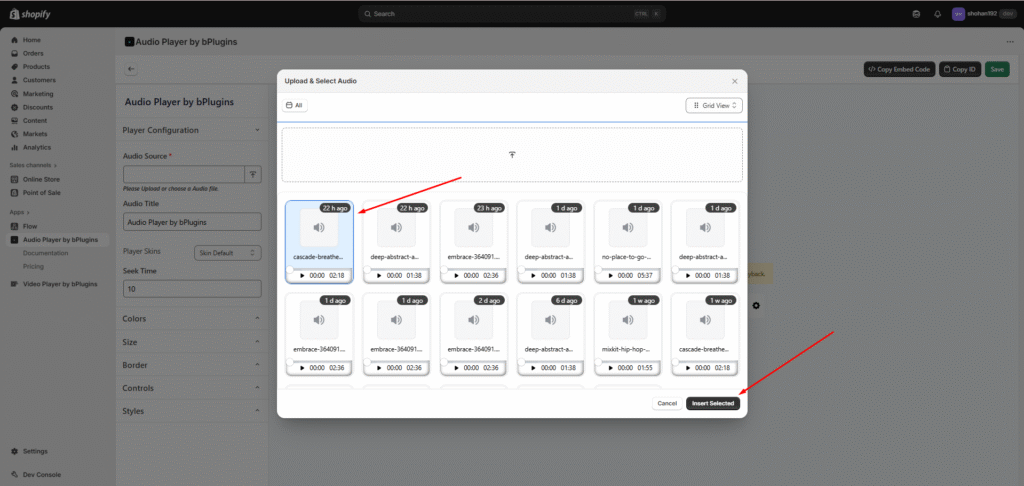
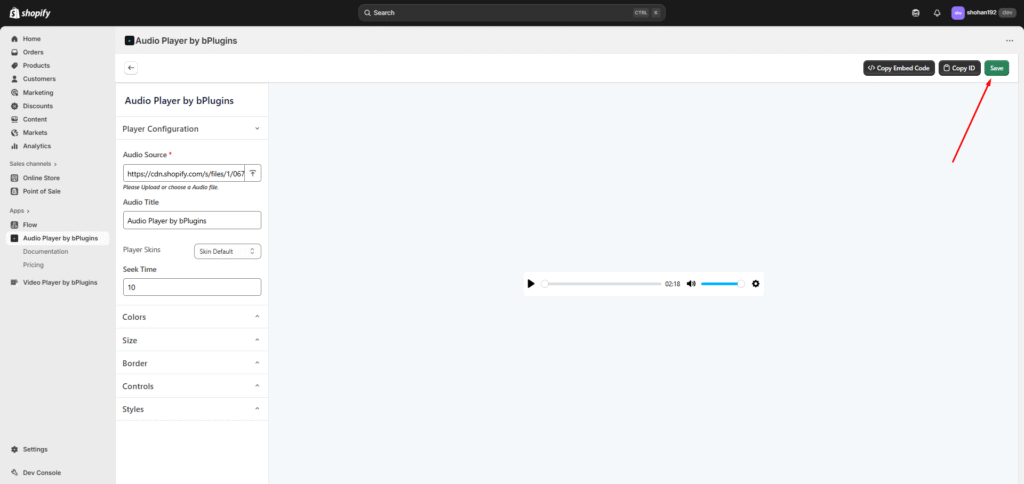
The “Audio Source” input field lets you paste an existing audio URL or click the Upload button to open a modal. In the modal, you’ll see all the audio files available in your store — you can select one from there or upload a new audio file and select it. After Upload You need to save it.
Playlist Audio Player
Click on “Add New Player” for Upload Audio and Select the Player type and Click On “Next”
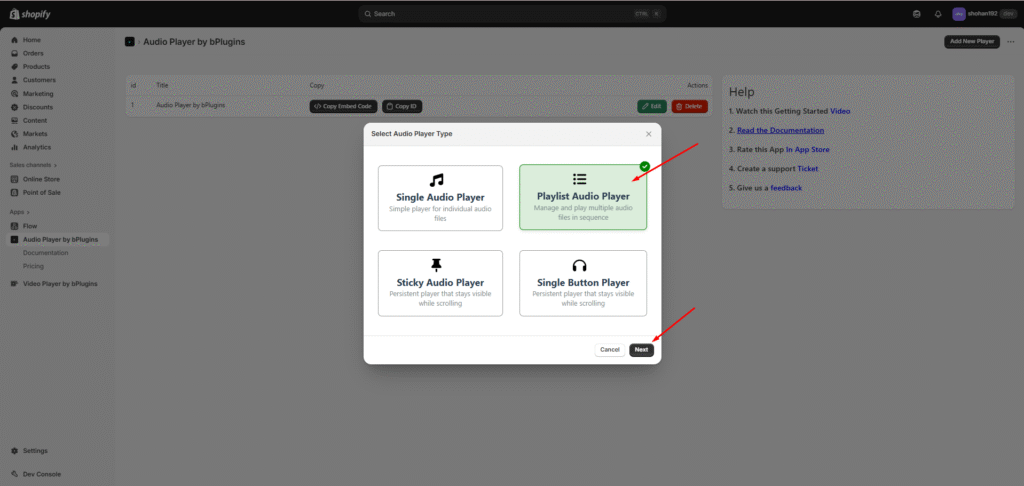
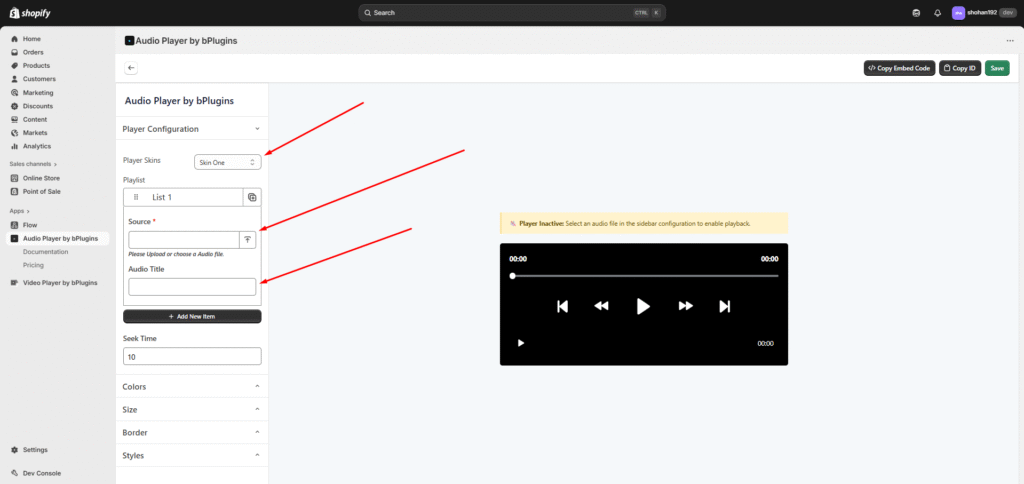
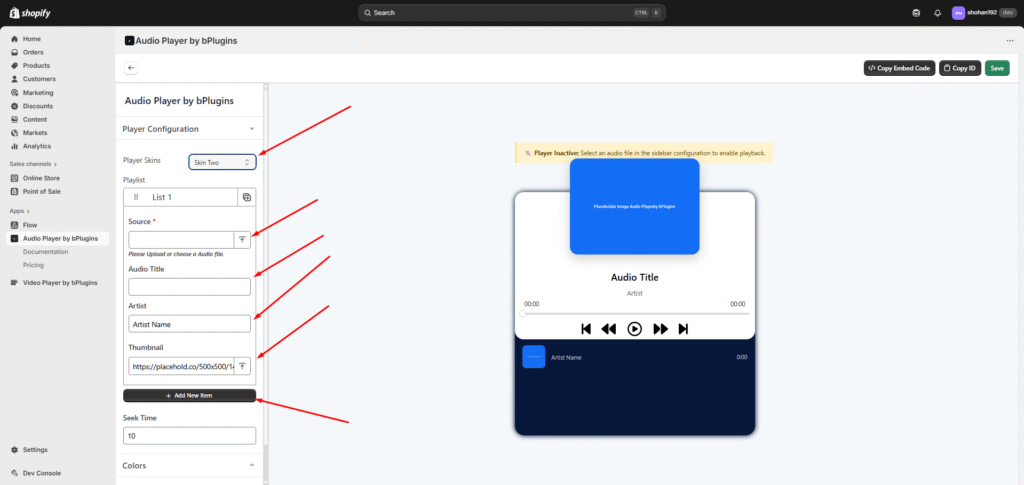
and you can see thare are two Skin “Skin One & Skin Two” if you select Skin One you see two input filed “Audio Source” and “Audio Title” and if you click on “Add New Item” You can add more Audio.
or if you select Skin Two you can see Four input filed “Audio Source”, ” Audio Title” , “Artist Name” and “Poster” . and After all change/update Please Save it .
Sticky Audio Player
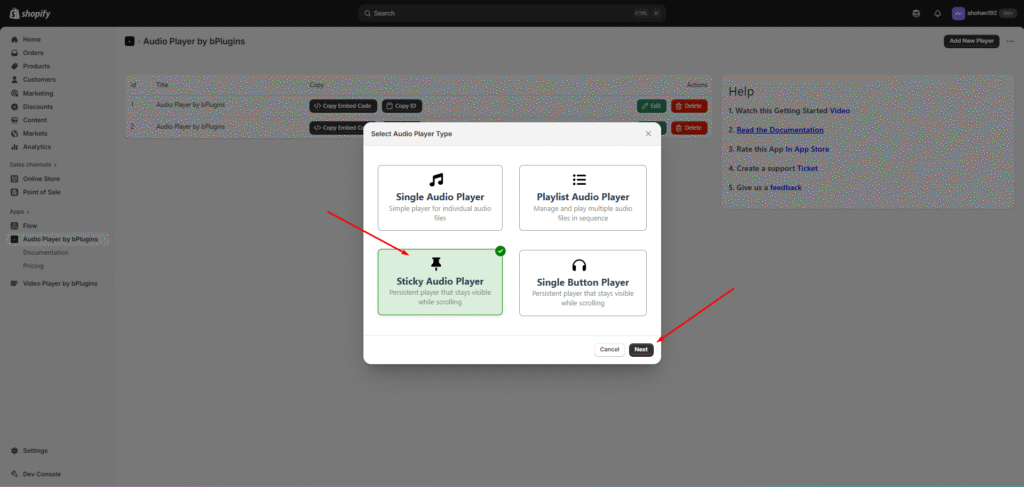
Click on “Add New Player” for Upload Audio and Select the Player type and Click On “Next”
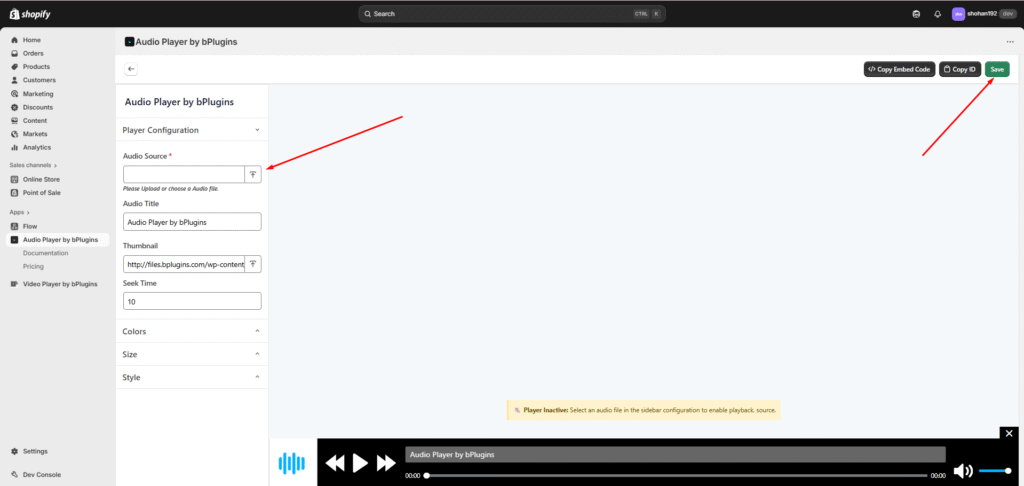
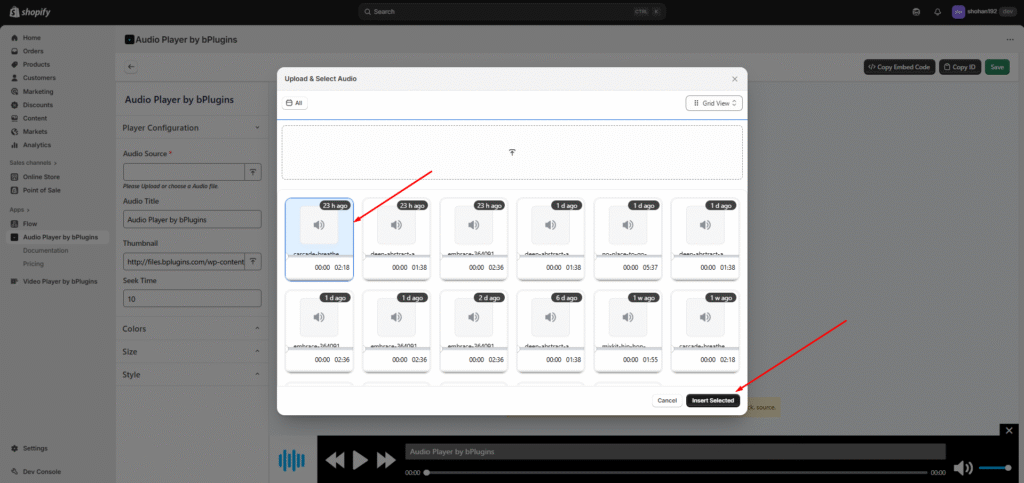
The “Audio Source” input field lets you paste an existing audio URL or click the Upload button to open a modal. In the modal, you’ll see all the audio files available in your store — you can select one from there or upload a new audio file and select it. After Upload You need to save it.
Single Button Player
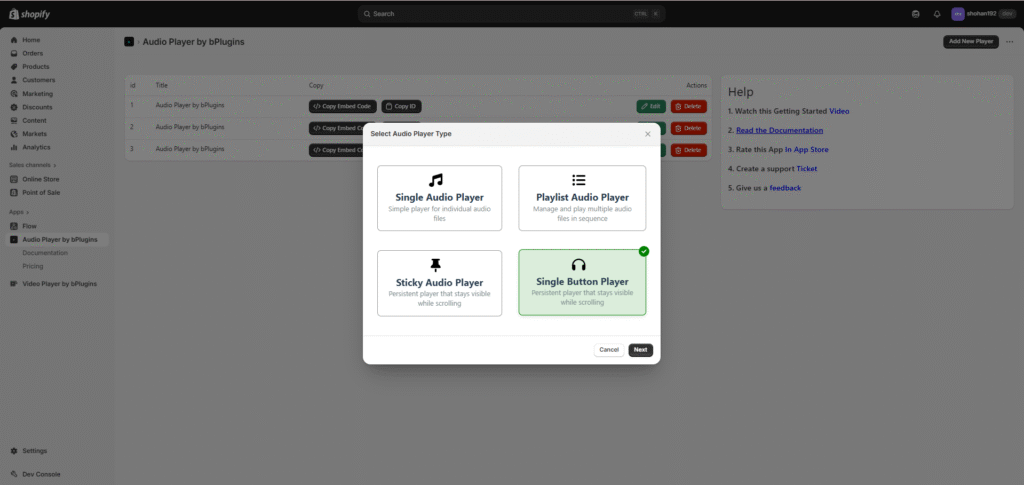
Click on “Add New Player” for Upload Audio and Select the Player type and Click On “Next”
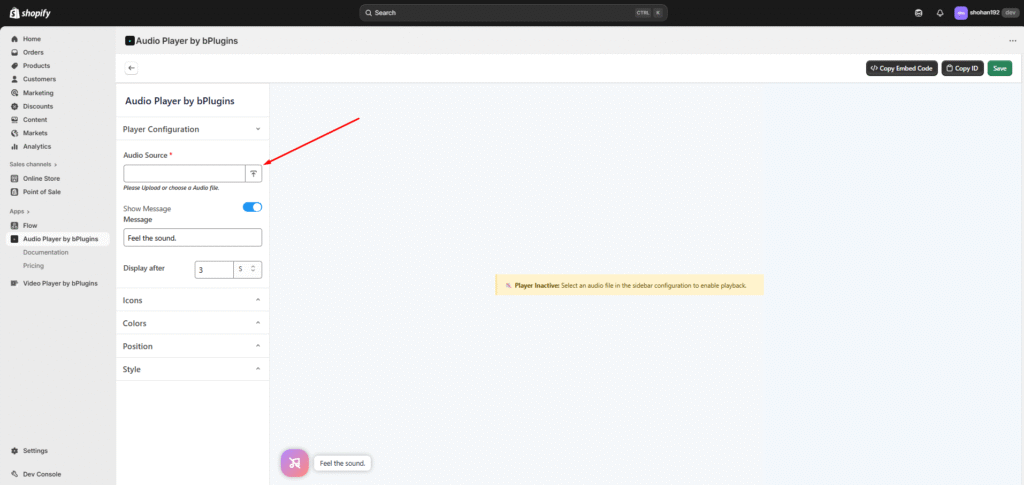
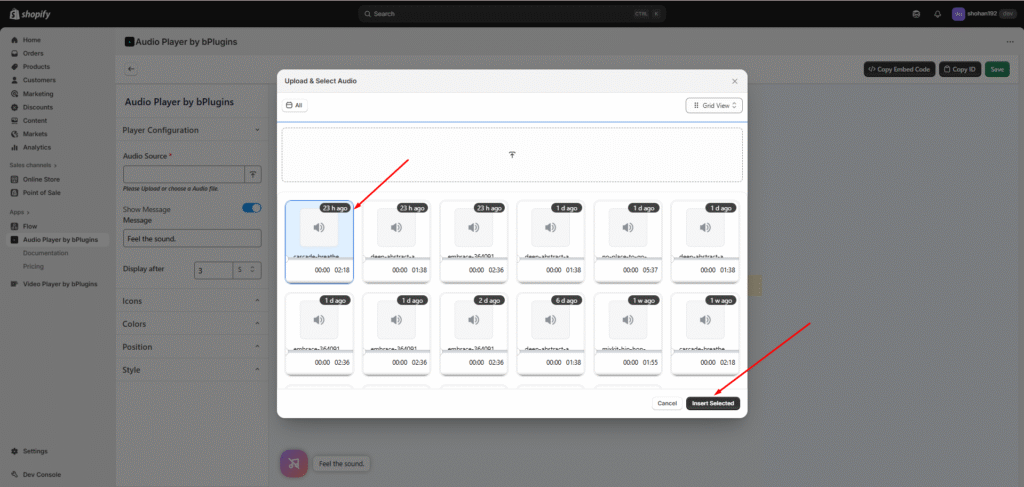
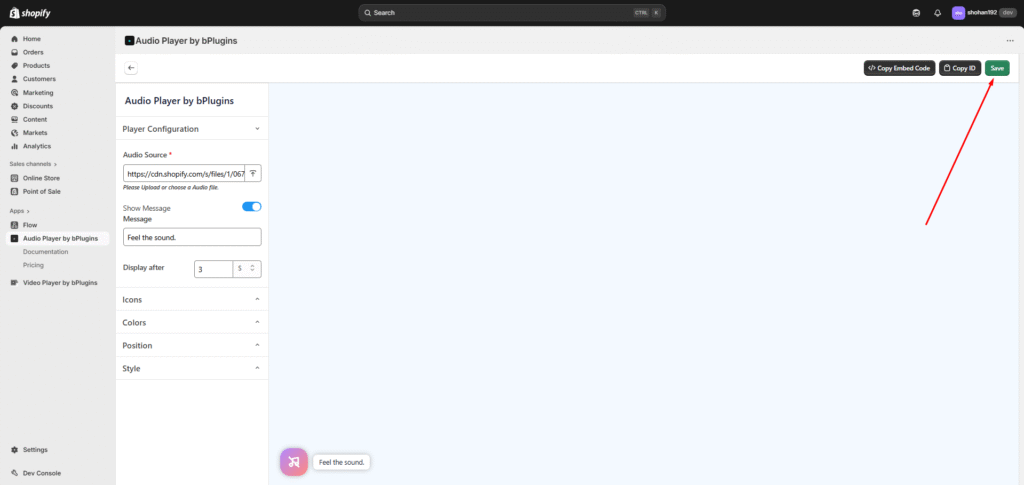
The “Audio Source” input field lets you paste an existing audio URL or click the Upload button to open a modal. In the modal, you’ll see all the audio files available in your store — you can select one from there or upload a new audio file and select it. After Upload You need to save it.
Was this page helpful?