
Embed Audio in Store ?
Audio Embed By Audio ID
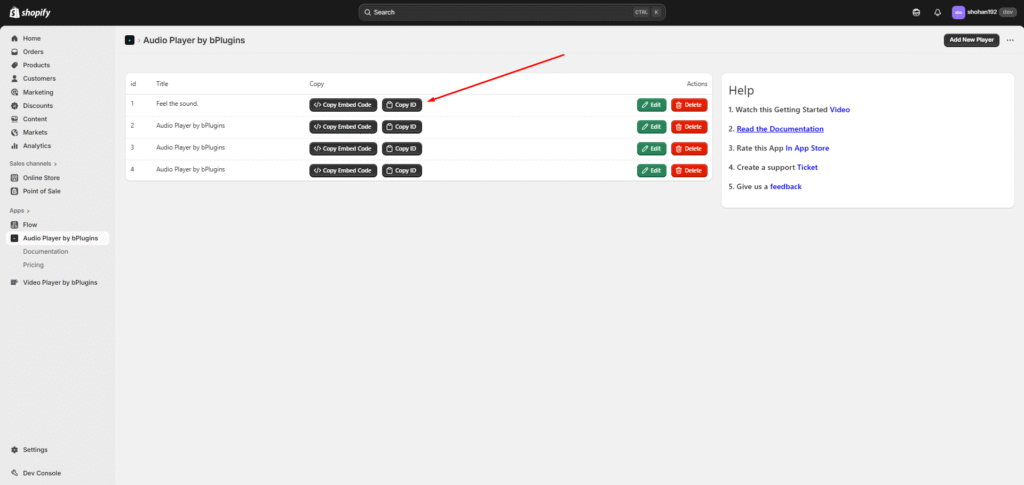
First Copye the Audio ID , Please Follow the secreenshot’s
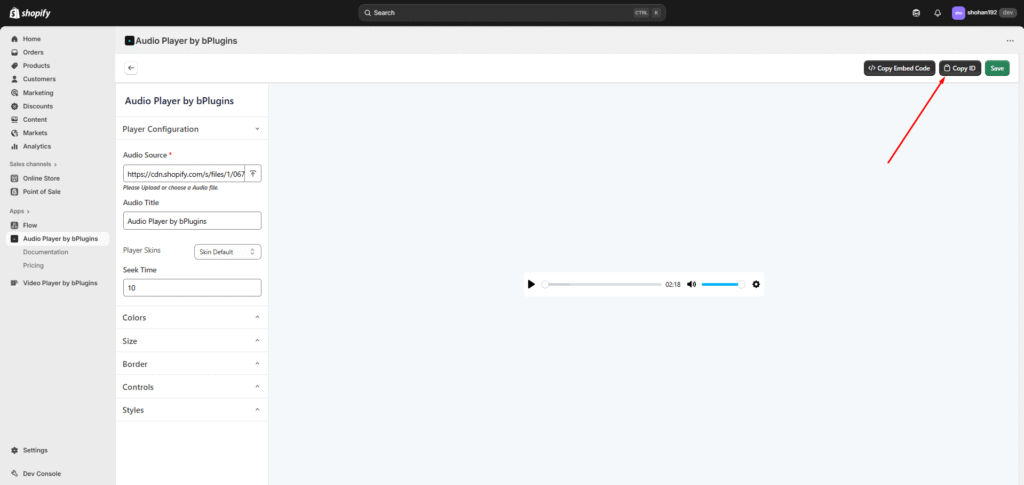
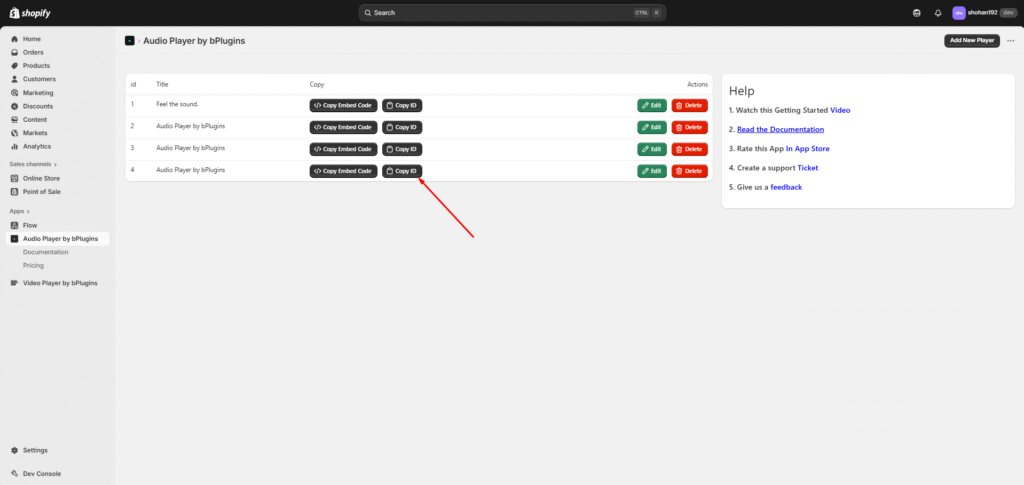
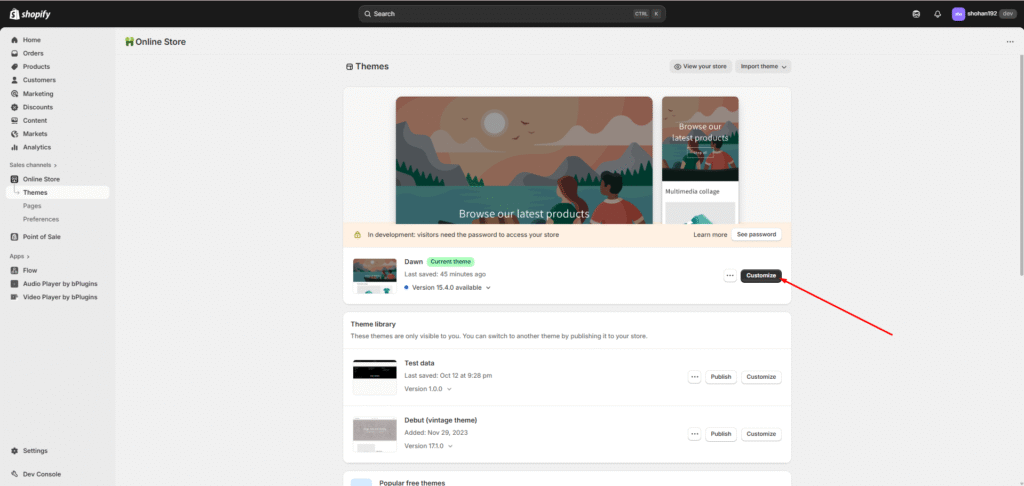
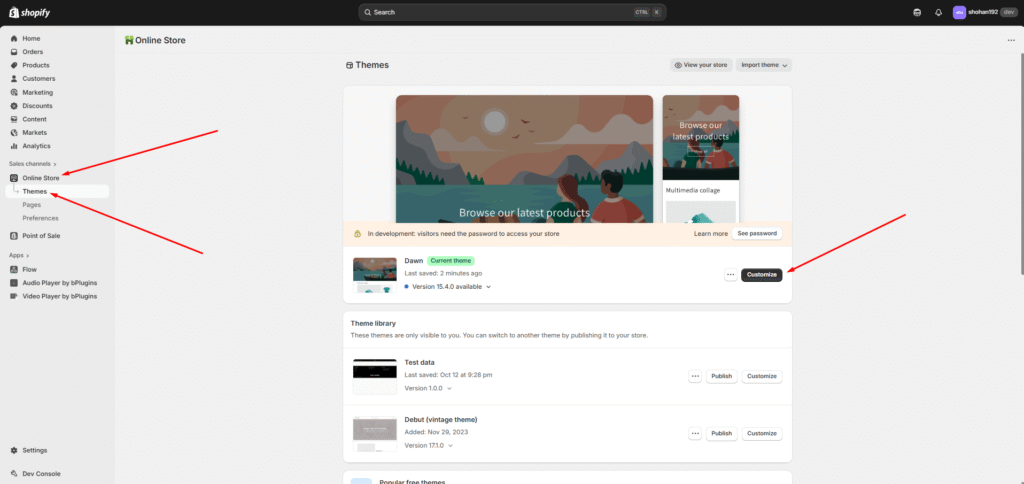
Now click on “Online Store” and go to that page. Next, click on the “Customize” button.
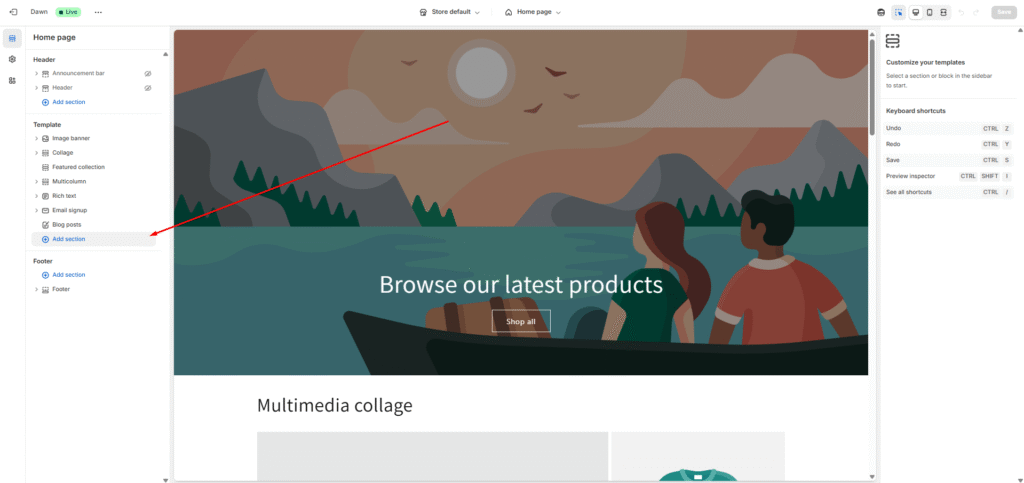
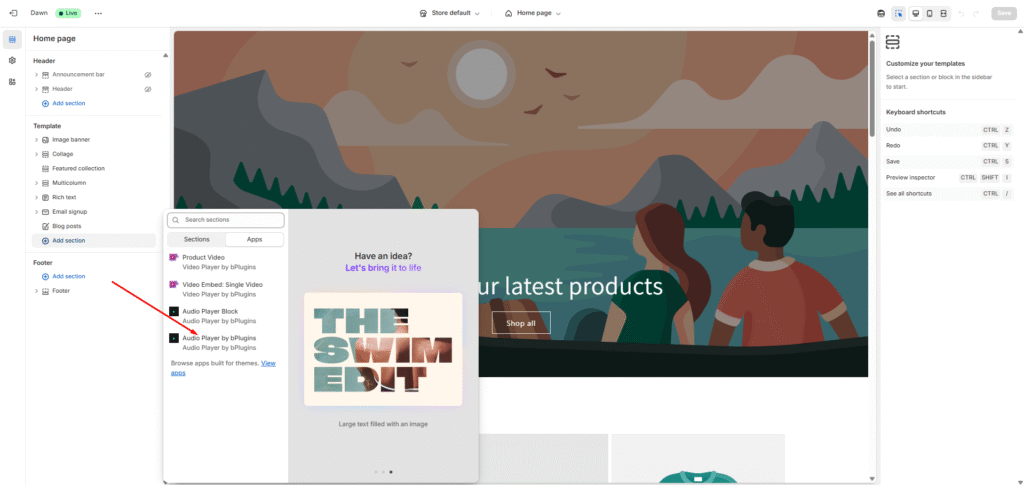
Add a new section, choose “App”, and then select the “Audio Player by bPlugins” app extension.
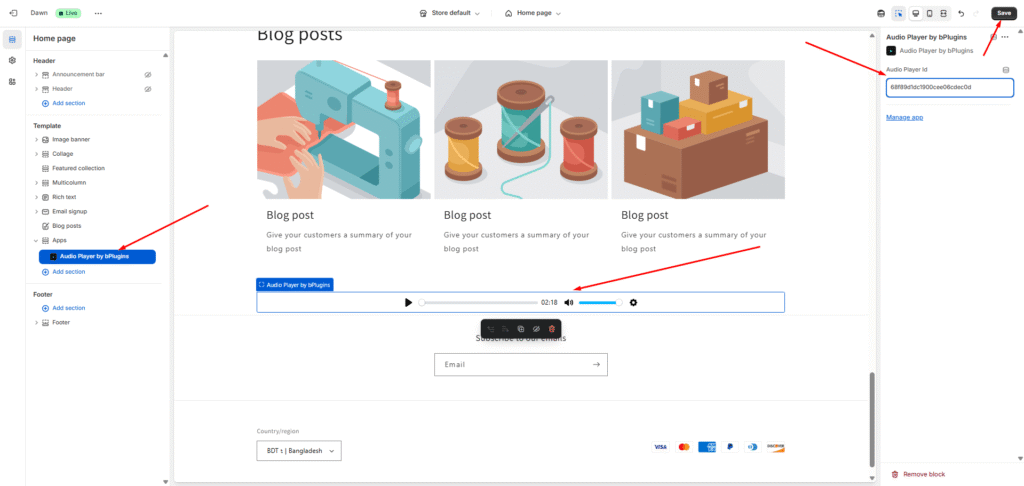
You’ll see an input field labeled “Audio Player ID” — paste the copied Audio ID there. You should now see your audio player appear.
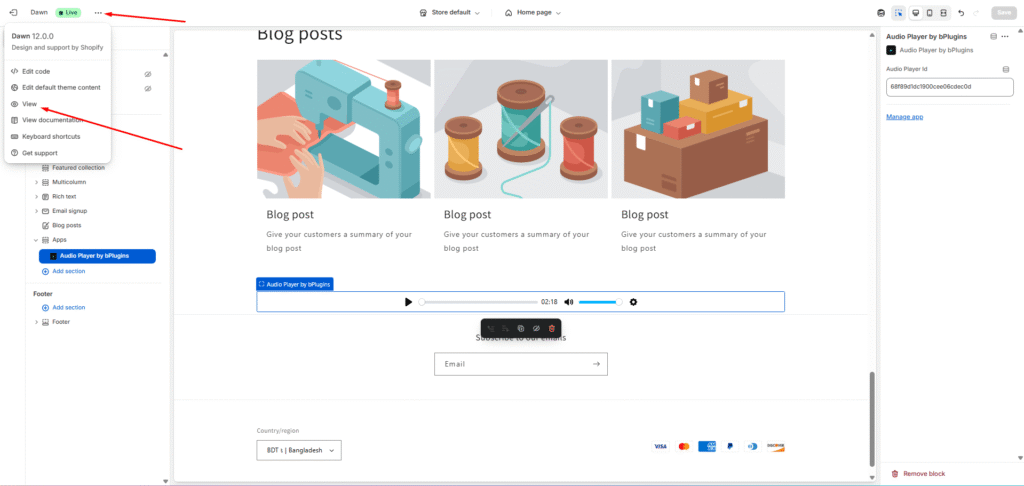
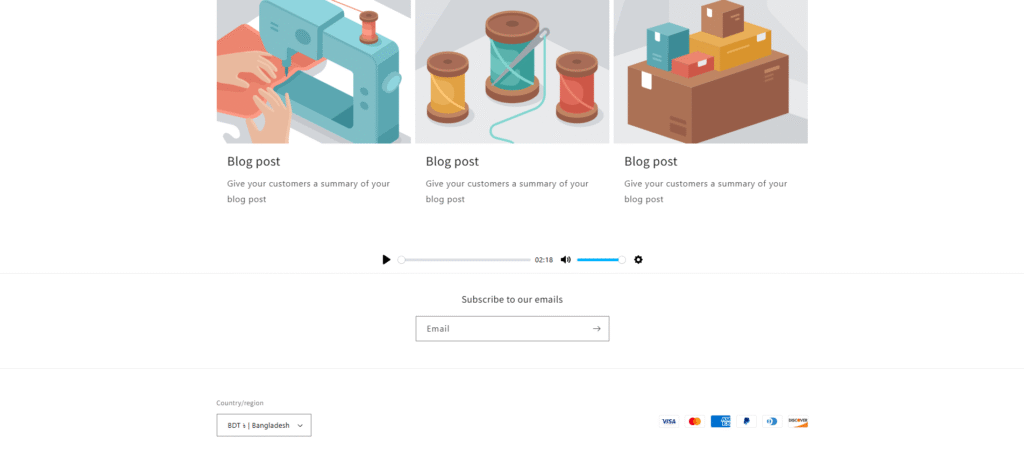
Finally, click Save, then click the three dots in the top-left corner and select View to preview your store.
(If the audio player doesn’t appear, please reload the page and wait a few seconds.)
Audio Embed On any custom page by Embed Code
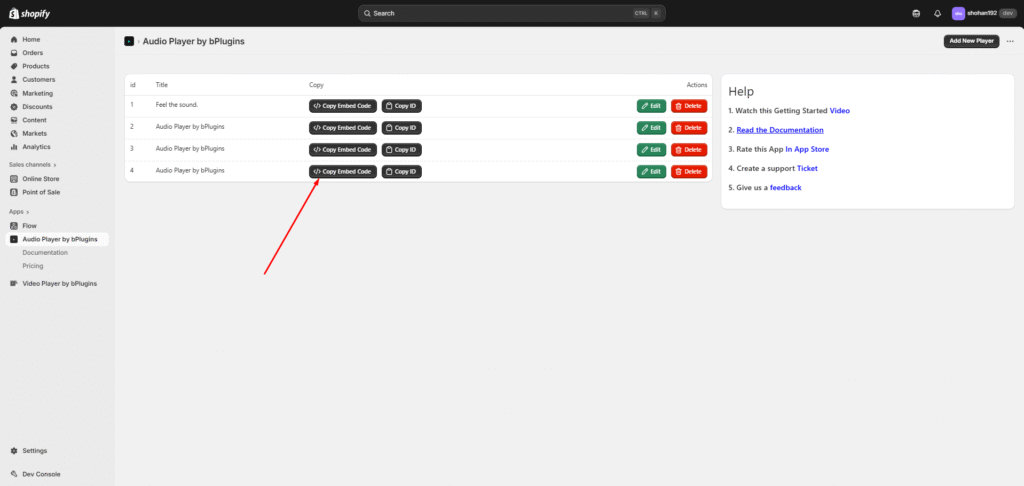
First, click on “Copy Embed Code” to copy the embed code.
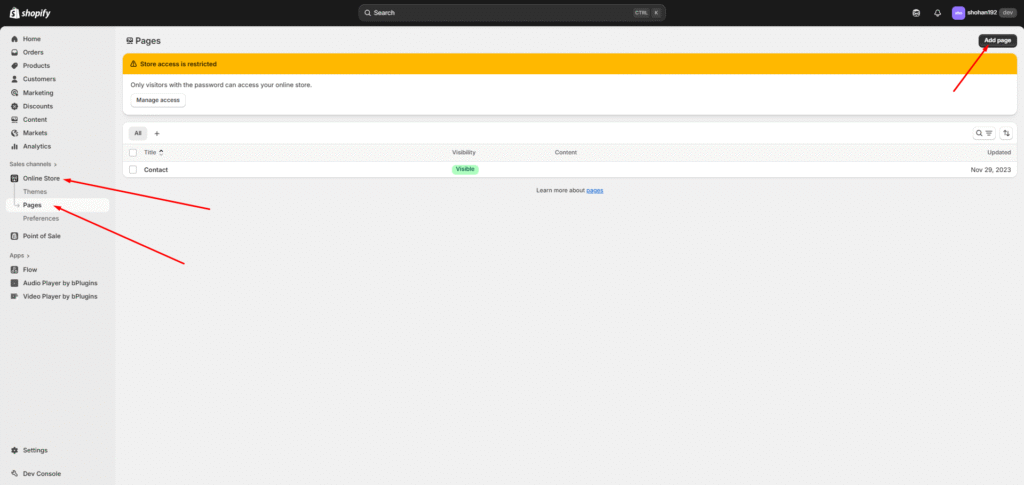
Next, go to “Online Store” → “Pages”, and click on “Add New Page”.
You can add the embed code to any existing page or create a new one.
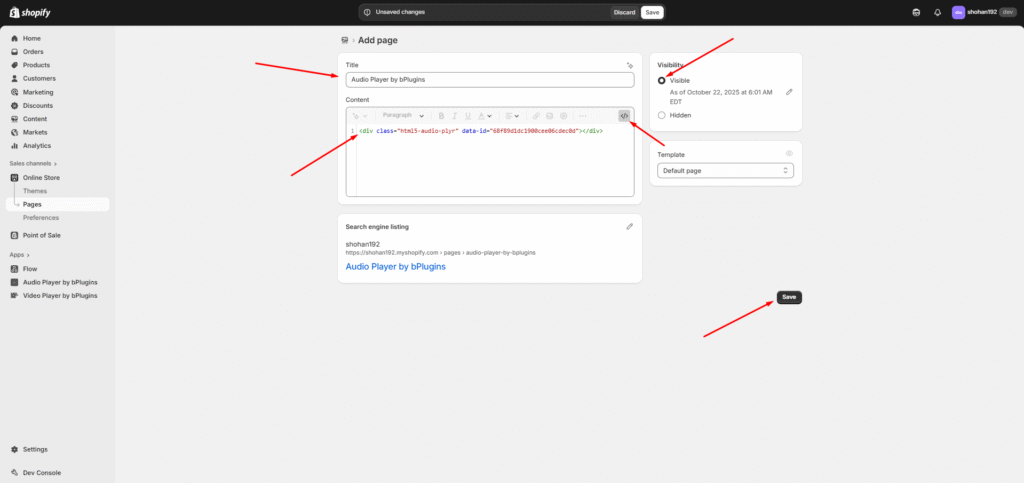
After adding a new page, first enter a Page Title and make the page visible (you can also choose to hide it if you want).
Next, switch to the HTML (code) view, paste the copied Embed Code, and click Save.
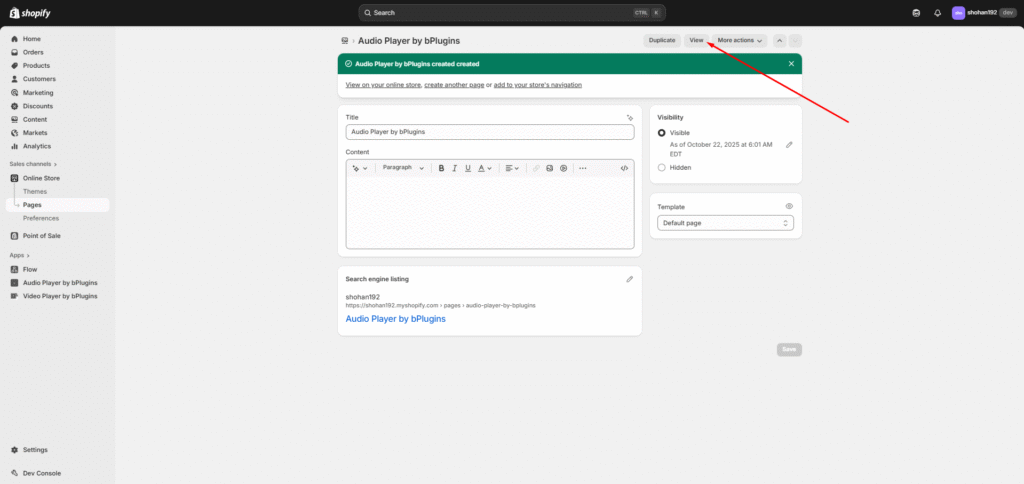
Now, if you preview the page, you’ll see the audio player displayed.
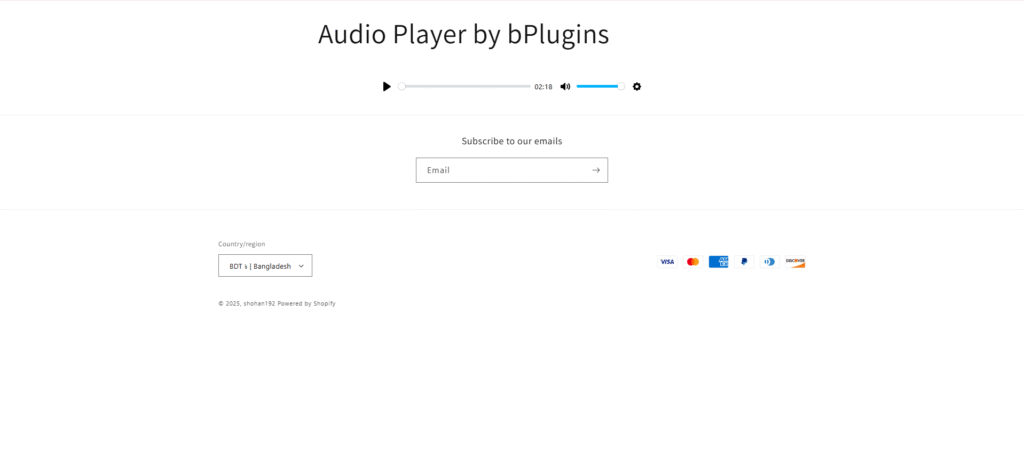
Display the Single Button Player Across All Pages
First, go to your Online Store → Theme Customize page.
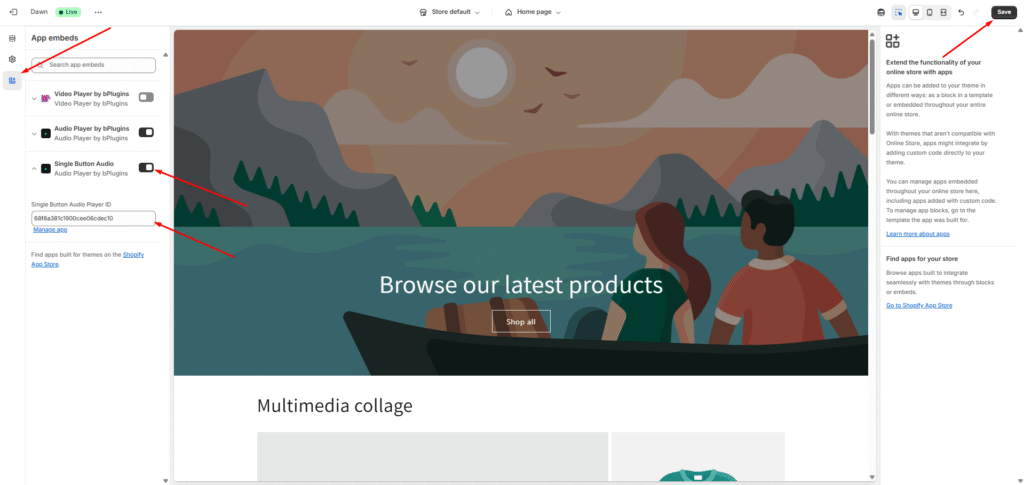
Then, open the App Embeds section and select “Single Button Audio” under the Audio Player by bPlugins app.
You’ll see an input field — paste your copied Single Button Audio ID there.
Click Save, and now the single button audio player will appear on all pages.
Audi Embed On single Product page Dynamic audio
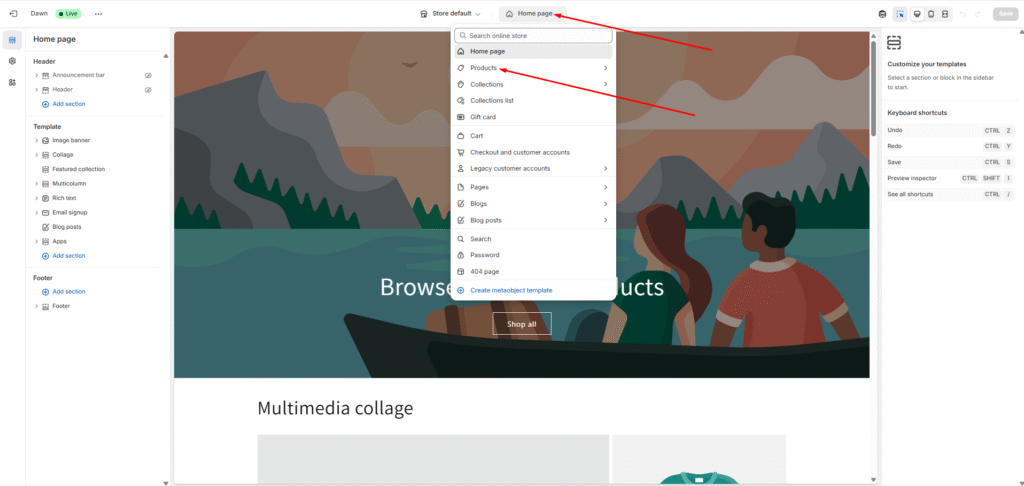
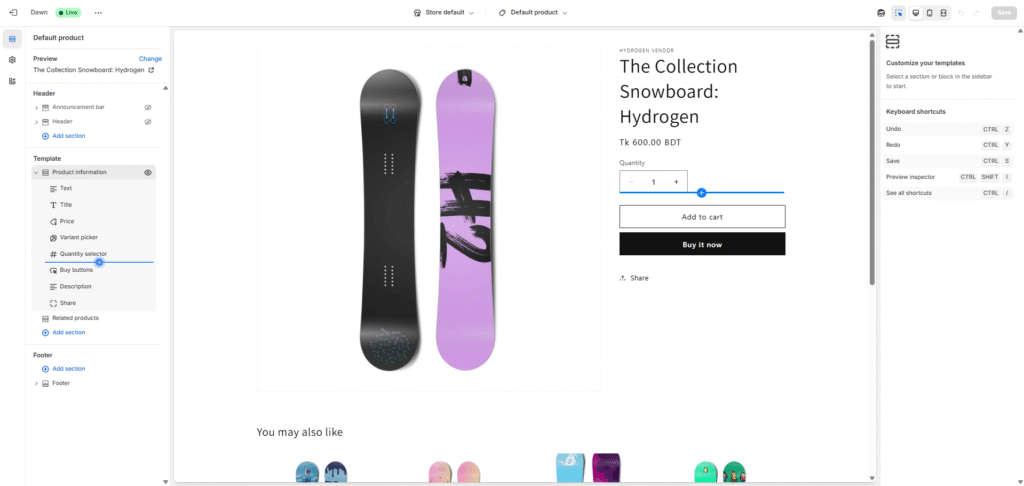
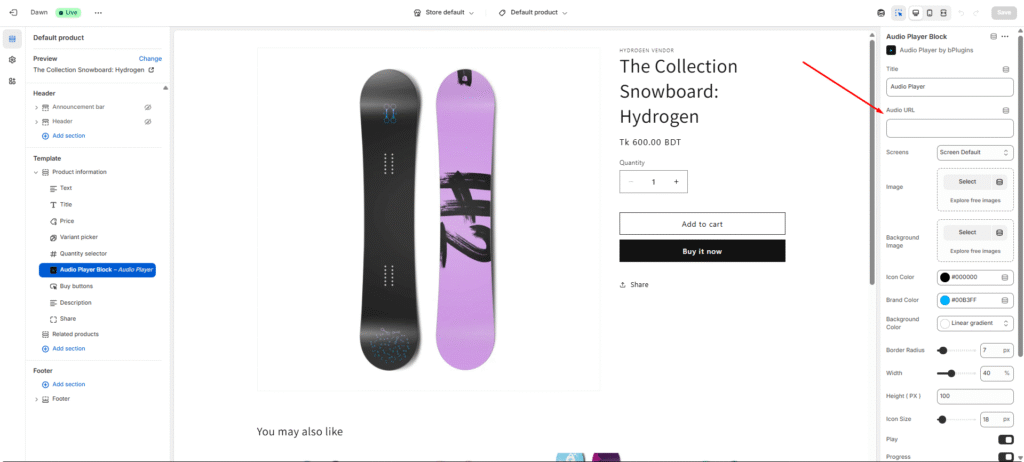
First, go to the Theme Customize page and select the Product Template from the top bar.
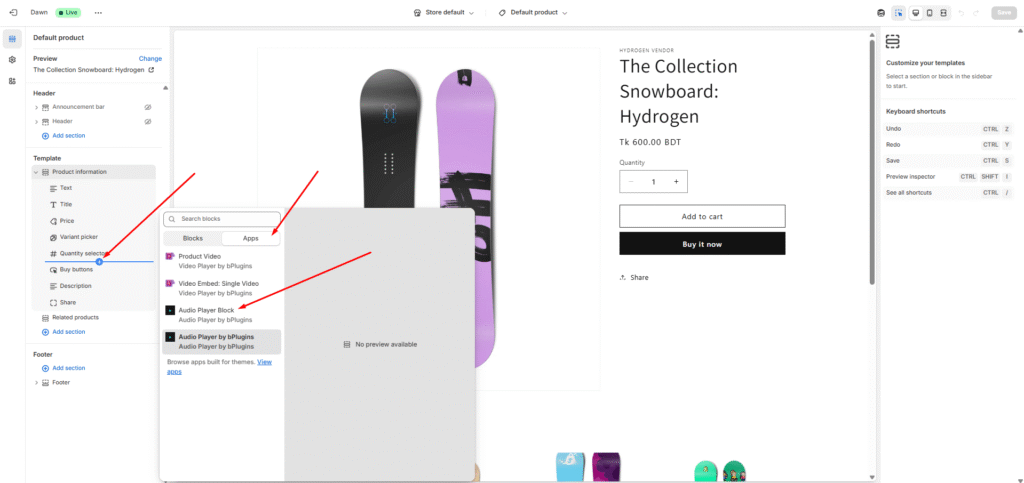
Add the Shopify app extension “Audio Player Block” from the Audio Player by bPlugins app.
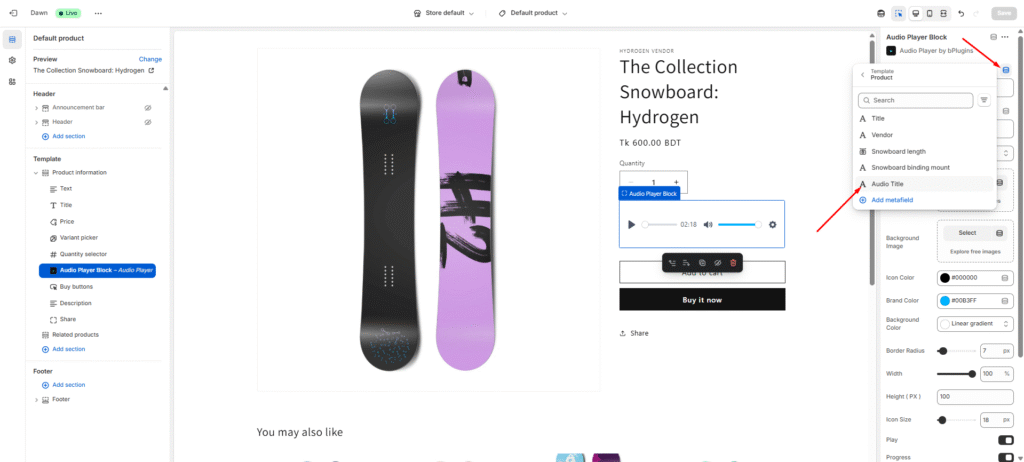
You can choose to display the same audio for all product pages or set different (dynamic) audio for each product page.
If a product doesn’t have any audio selected, nothing will be shown on that page.
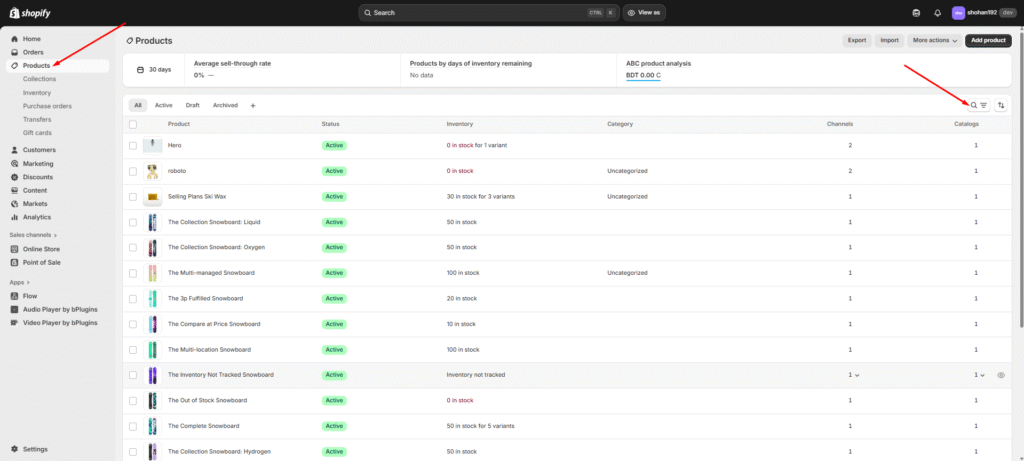
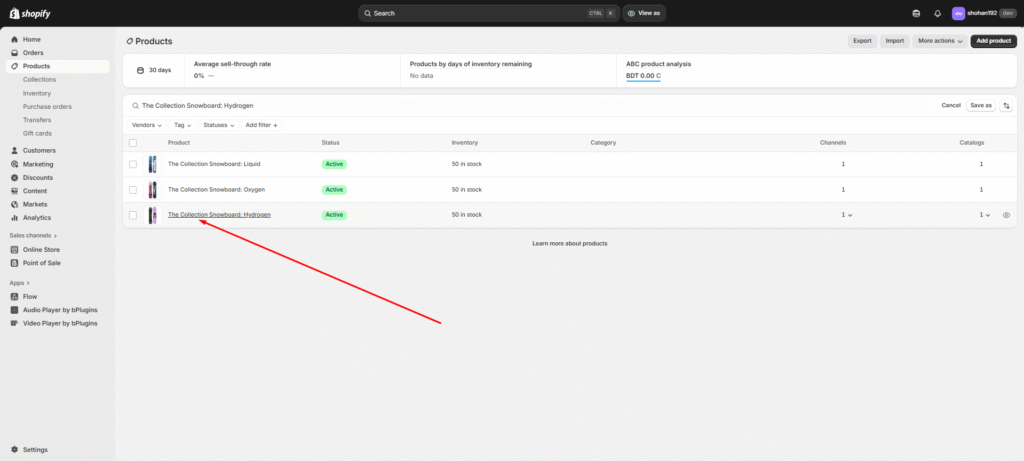
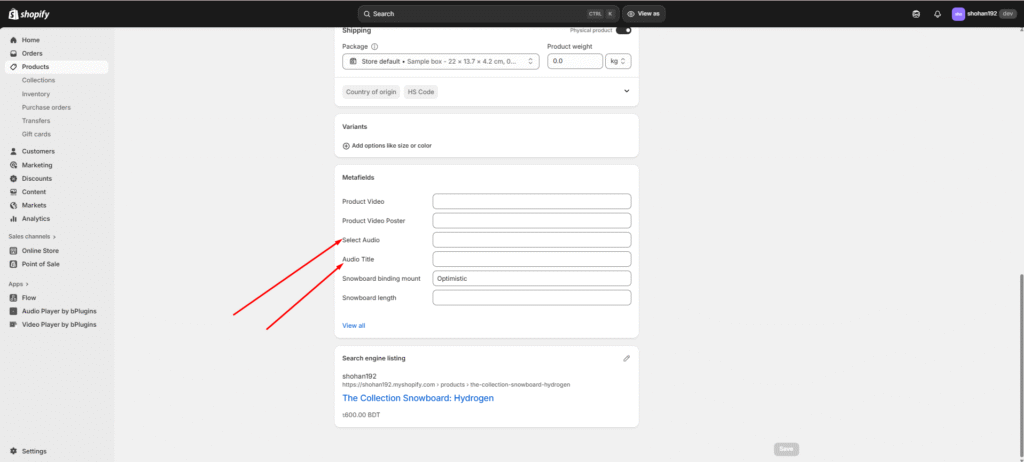
Next, go to your Admin Dashboard → Products, open any product, and scroll to the bottom of the page. You’ll find two input fields: “Select Audio” and “Audio Title.”
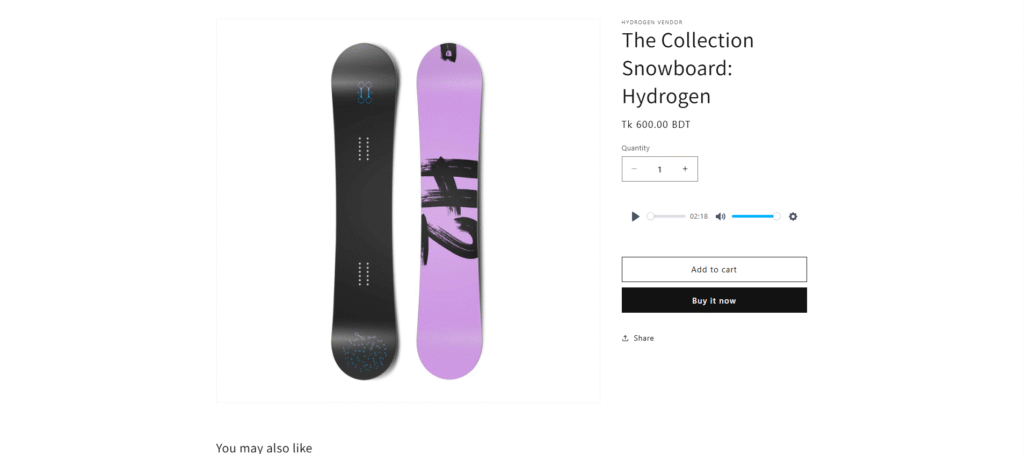
Fill out these fields to set dynamic audio for that product. After saving, preview the product page — you’ll see the audio player displayed.
(Note: This is a Pro feature. Some options may not be available on the Free plan.)
Was this page helpful?