
Hotspot
Hotspots: quick guide
Hotspots are pins on your 3D model. Shoppers tap one to read a note, watch a video, or buy a product. Hotspots come with the paid plans.
1. Add a hotspot
- Open Product 3D Models and pick a product. Scroll to the Hotspots panel.
- In the preview, turn the model to the side you want to point at.
- Click Add hotspot, then click that spot on the model. A numbered pin appears.
- Type a Title and click Save.
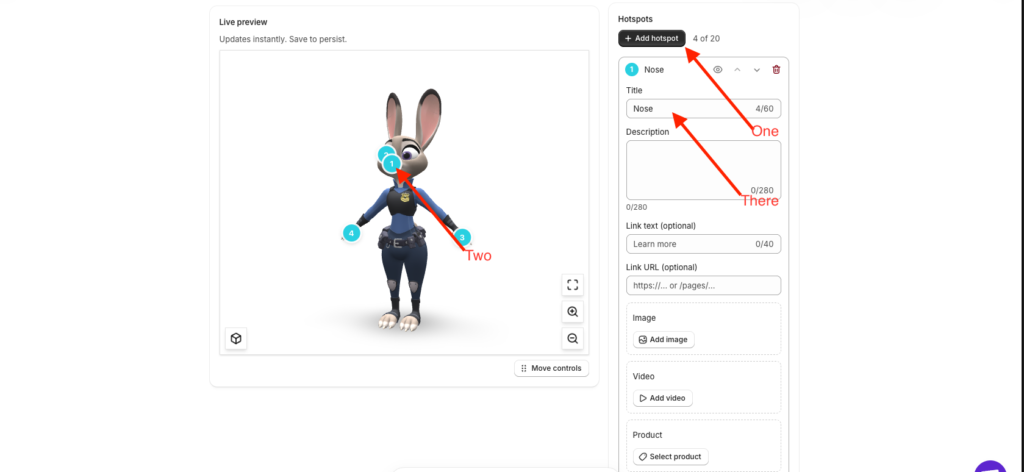
2. Fill it in
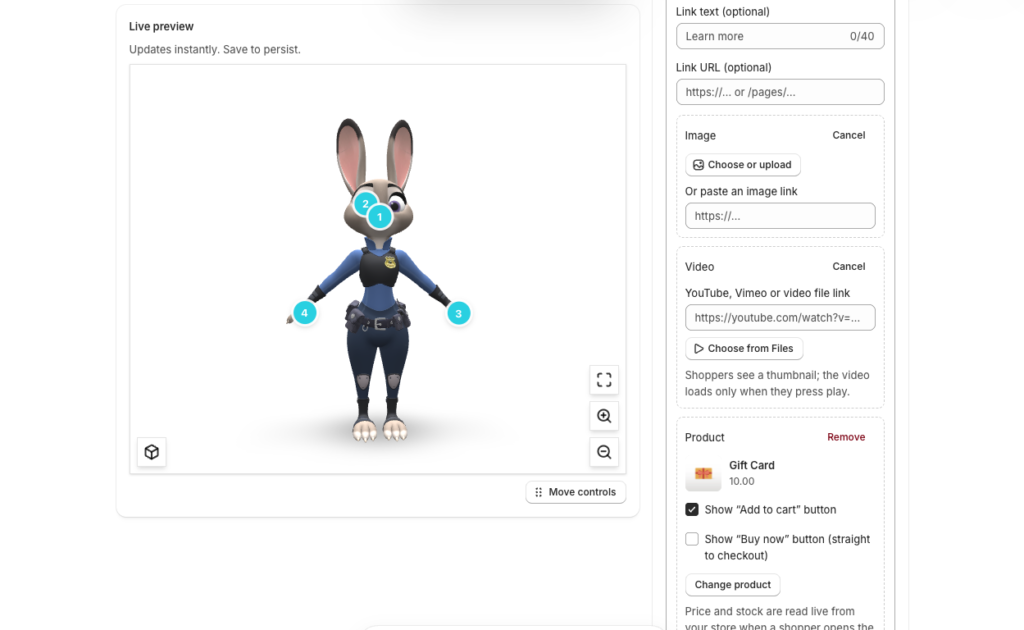
Click a hotspot’s title in the list to open it. Add only what helps the shopper:
- Title and description — a short name and a sentence or two.
- Link — a button to a page, such as your size guide.
- Image or video — a photo, or a YouTube, Vimeo or .mp4 link.
- Product — with Add to cart or Buy now buttons.
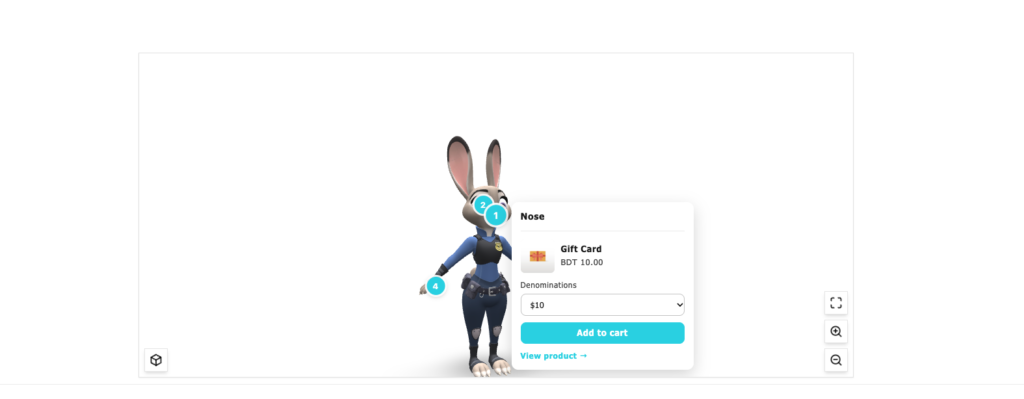
3. What shoppers see
Shoppers see numbered pins on the model. When they open one, the camera turns to that spot and your card appears. On phones, the card slides up from the bottom of the screen.
Change, move or remove
| To | Click |
|---|---|
| Preview a hotspot | The eye button on its row |
| Change the order | The up and down arrows |
| Move the pin | Move to a new spot, then the new place on the model |
| Delete it | The red delete button |
Always click Save when you’re done. You can add up to 20 hotspots per model, on products and on 3D Model Library models.
Not showing?
- Did you save? Changes reach your store only after Save.
- Is it switched on? Check that Show hotspots on the storefront is on, under the hotspot list.
- Is the pin floating beside the model? It missed the model. Use Move to a new spot and click right on the model.
Was this page helpful?